Quick start guide
From install to your first hotkey message in under a minute.
Create a game
Open ggsay and go to the Games page. Click "New Game" and enter a name — it's just a label for your own reference (e.g. "League of Legends", "Valorant").
Set pre/post actions
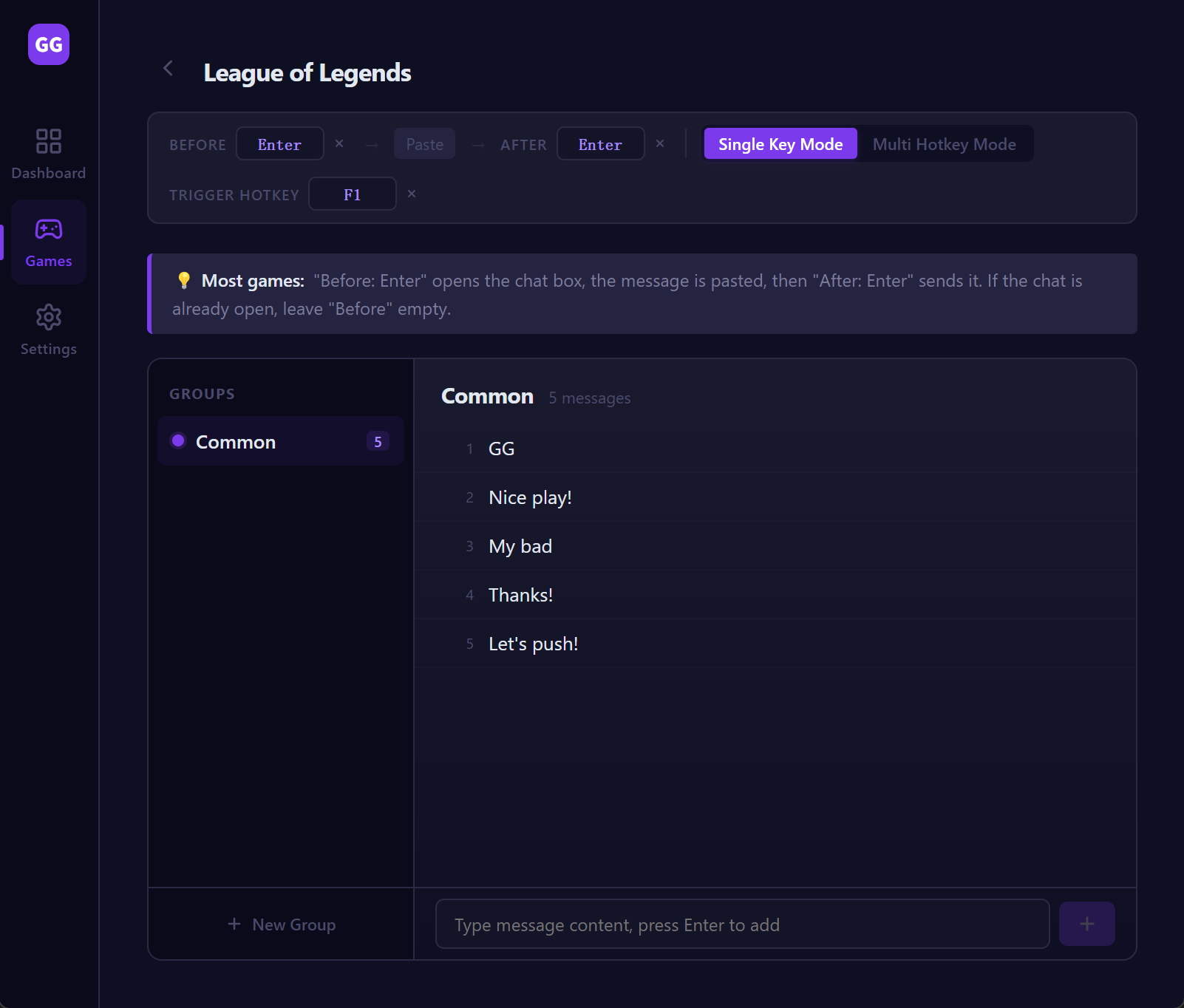
Most games use Enter to open the chat box and Enter again to send. In the game detail view, set "Pre action" to Enter and "Post action" to Enter. This tells ggsay to press Enter before typing your message (to open chat) and after (to send it).
Add groups and messages
Create groups for different scenarios — "Ranked", "Casual", "Team calls", whatever you want. Inside each group, type the messages you want to send. You can add as many as you like.
Bind hotkeys
Choose your trigger mode. Single-key mode: bind one key to the game — pressing it picks a random message from the active group. Multi-hotkey mode: bind a separate key to each message for precise control. Hold any hotkey to repeat.
Start listening and play
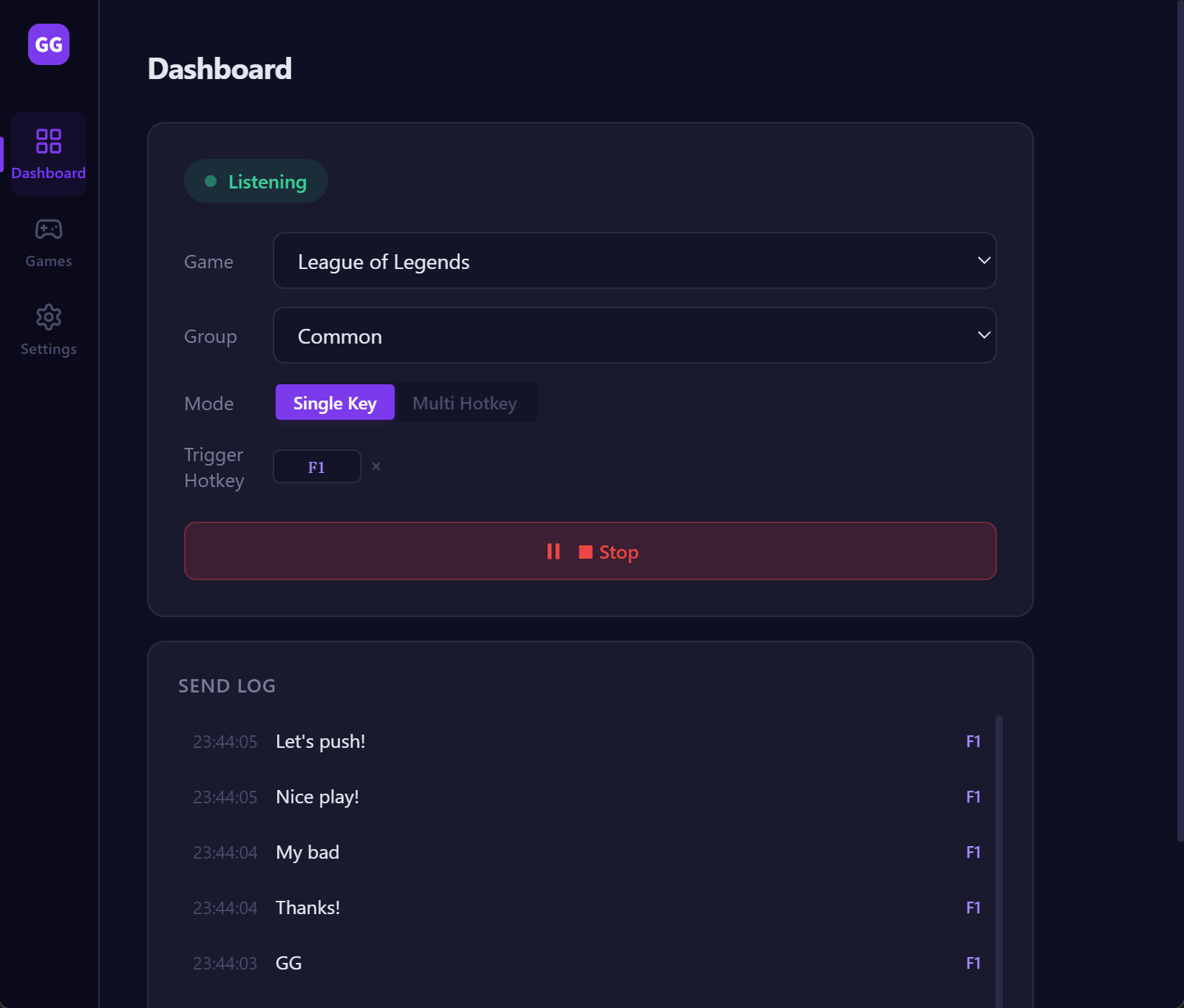
Go to the Dashboard and click "Start Listening". Switch back to your game. Press your hotkey — ggsay opens chat, types your line, and sends it. Done.
Tips
- ✓Use the system tray icon to minimize ggsay — it stays running in the background without taking up space on your taskbar.
- ✓ggsay auto-detects your OS language on first launch. You can switch to any of the 8 supported languages in Settings.
- ✓Your data is stored locally in a SQLite file. Back it up by copying the database file if you want to transfer your presets to another PC.